
Piso WiFi: 10.0.0.1 Piso WiFi Pause Time 2026
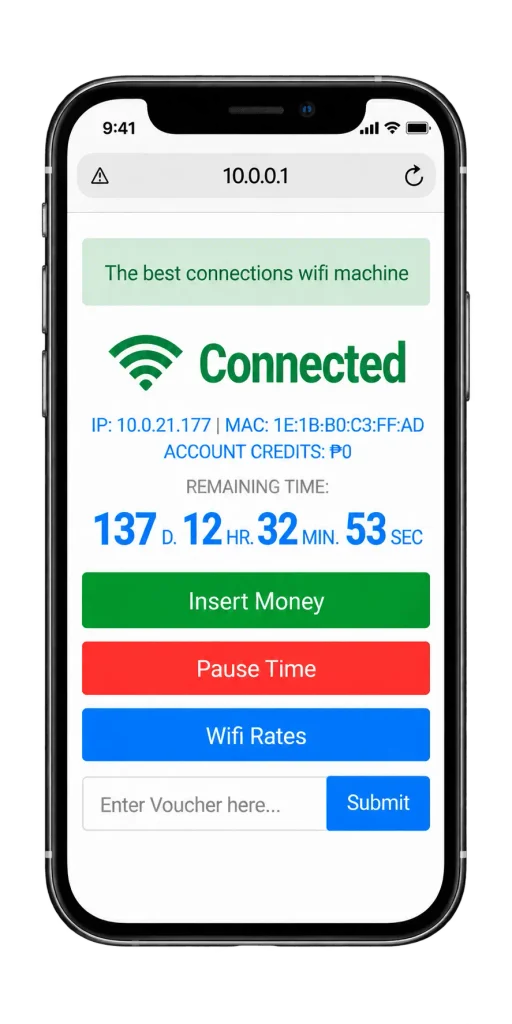
To pause your piso wifi session:
- Connect to the piso wifi network
- Open your browser and go to 10.0.0.1.
- Tap the Pause button on the portal screen
Your timer stops immediately. Credits are saved. To resume later, go back to http://10.0.0.1 and tap Resume.
What Is Piso WiFi Pause Time?
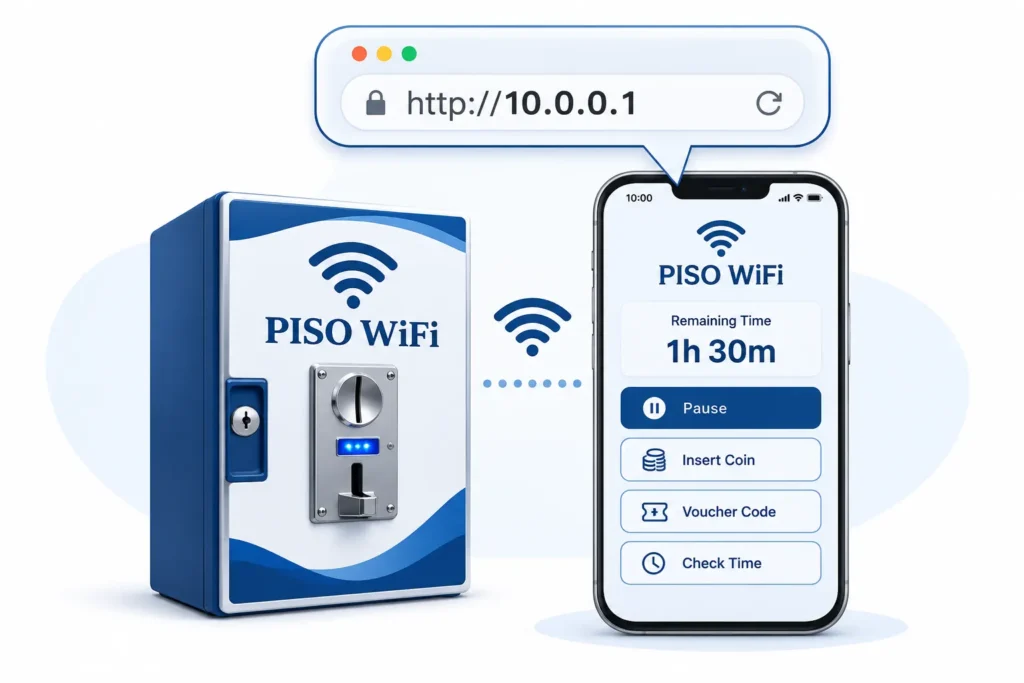
Piso WiFi is a coin-operated WiFi vending machine common in the Philippines. You insert a coin at the machine, connect to its network, and buy internet time through the portal at 10.0.0.1.
Piso WiFi pause time is a built-in feature that lets you freeze your internet session timer without losing your remaining credits. When you tap the Pause button on the portal screen, the countdown stops completely. Your credits stay exactly where they are until you come back and resume.
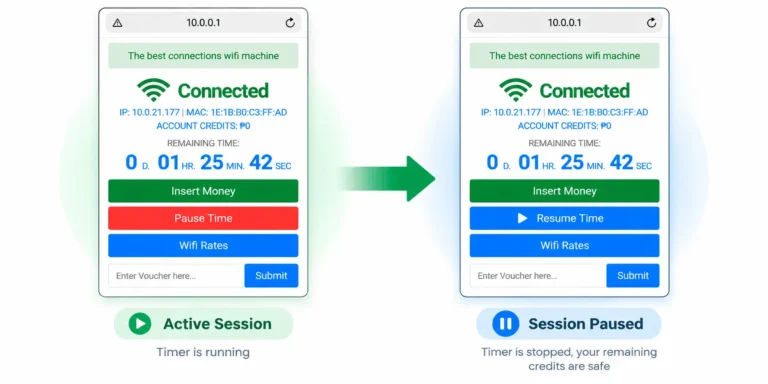
If you do not see a pause button on the portal screen, the vendo owner has not enabled it yet. They need to turn it on from the admin panel before it shows up for customers.
What is 10.0.0.1?
10.0.0.1 is a private IP address used by many Piso WiFi machines in the Philippines. It is not a regular website on the internet. It is a local page hosted by the machine, which means it only opens when you are connected to that piso wifi network.
The 10.0.0.1 portal allows customers to start a session, enter voucher codes, check remaining time, and pause or resume sessions when these features are enabled by the operator.
How to access the 10.0.0.1 portal:
- Connect your phone or computer to the piso wifi network.
- Open Chrome, Safari, or any browser.
- Type 10.0.0.1 into the address bar and press Enter.
- The portal will load with the available options for that machine.
Vendo owners can access the admin panel at http://10.0.0.1/admin.
How to Use Piso WiFi
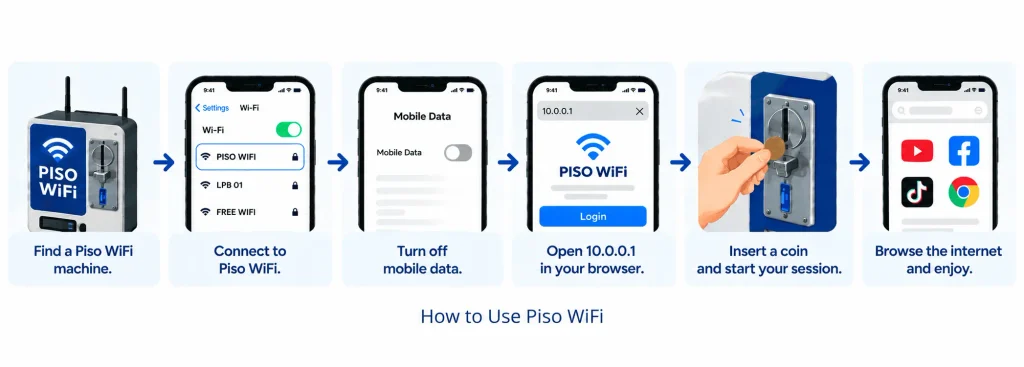
- Find a piso wifi machine near you.
- Connect your phone or laptop to the piso wifi network.
- Turn off your mobile data.
- The portal at 10.0.0.1 will open automatically in your browser. If it does not, type 10.0.0.1 manually in the address bar.
- Insert a coin into the machine. Your session timer starts and internet access begins.
- Browse until your time runs out or you choose to pause your session.
How to Pause Your 10.0.0.1 Piso WiFi Session
If you have connected to 10.0.0.1 piso wifi and want to pause it, the following steps will help you do that. These steps work on most machines running LPB or AdoPiSoft. If your machine uses a different setup, the steps are similar but the portal screen may look slightly different.
Tap the Pause Button
On the 10.0.0.1 portal screen, find the Pause button. It may also say “Pause Time” or show a pause icon. Tap it once. The timer stops immediately.
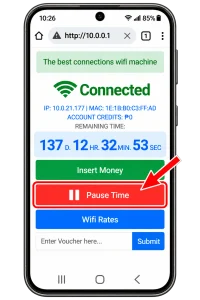
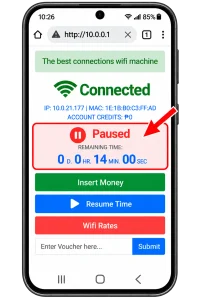
Confirm Your Timer Has Stopped
After tapping Pause, the portal should update to show a “Paused” status with your remaining time displayed. The countdown should no longer be moving.
If the timer is still counting down after you tapped Pause, try tapping the button again or refreshing the portal page. Sometimes there is a brief delay of two to three seconds before the pause registers on the display.
Note: Pause time does not give you extra minutes. It freezes your remaining time exactly where it is. No time is added.
Video Guide: 10.0.0.1 Piso WiFi Pause Time and Resume Tutorial
If you prefer a visual walkthrough, watch this short video to learn how to pause your active Piso WiFi session and resume it later with your remaining time.

Piso WiFi Pause Time on iPhone, Samsung, Chrome, and Windows
The way you reach a Piso WiFi portal can vary slightly depending on your device and browser. The main difference is usually how the portal opens, not how Pause Time itself works.
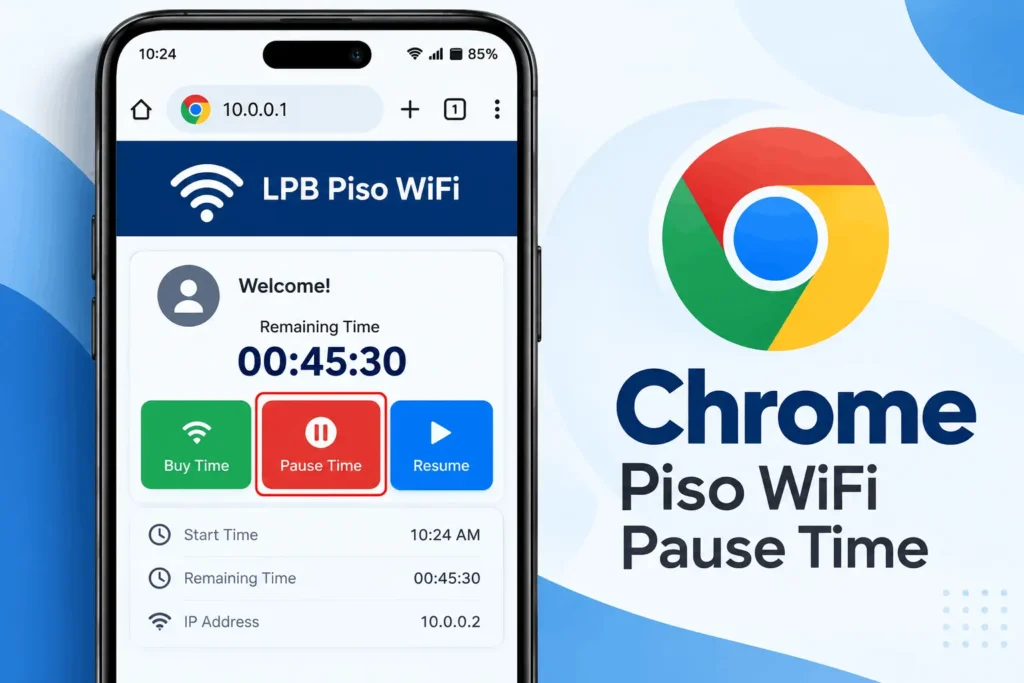
Chrome Piso WiFi Pause Time
Open Chrome, enter the portal address in the address bar, and tap Pause when the portal loads. The steps to pause are the same regardless of which browser you use. Chrome does not provide the pause feature itself. It just opens the portal. The pause option only appears if the machine owner has enabled it.
iPhone
After connecting, iPhone usually shows a “Sign in to Network” prompt. Tap it to open the portal. If it does not appear, open Safari and enter the portal address manually. If the portal closes, reopen Safari while still connected.
Samsung Phones
Samsung’s Secure WiFi feature can block the Piso WiFi portal in Chrome on unencrypted networks. If the portal does not load, try Samsung Internet instead. If neither browser works, check that your phone is still connected to the Piso WiFi network.
Windows PC or Laptop
After connecting, Windows may show an “Additional sign-in required” notification. Click it to open the portal automatically. If no notification appears, open any browser and enter the portal address directly in the address bar.
Piso WiFi Pause Time App
There is no official customer-facing piso wifi pause time app. The portal at 10.0.0.1 is the interface, and it is a web page you access through your browser, not a downloadable application.
What you may find on Google Play or the App Store when you search for “piso wifi”: these are mostly operator management tools, machine finders, or third-party apps for monitoring vendo earnings. None of them give customers the ability to pause a session. Session control only works through the browser portal.
LPB has an operator mobile app for owners to manage their machines remotely. AdoPiSoft has a web dashboard that operators can access from any browser. Both of these are for machine owners, not customers.
Some machines display a QR code on the screen or printed near the machine. Scanning that QR code opens the portal in your browser as a shortcut instead of manually typing the IP address. The portal functions identically whether you reached it by QR code or by typing the address.
How to Enable 10.0.0.1 Piso WiFi Pause Time as a Vendo Owner
Pause time is off by default on all major firmware platforms. Here is how to turn it on.
On LPB and AdoPiSoft, log in to the admin panel, go to Settings, find the pause time option, enable it, set your limit, and save.
- LPB Piso WiFi: Go to Session Settings and toggle Pause Time on.
- AdoPiSoft: Go to Voucher Settings and enable Allow Pause.
- JuanFi: Pause time is not built in. You need to install a custom pause script from the JuanFi GitHub repository. Basic MikroTik scripting knowledge is required.
Machines with pause time get fewer complaints about lost credits and more repeat customers. I would suggest enabling it. It takes two minutes and costs nothing. Thinking of running a machine as a business? The Piso WiFi vendo guide covers machine costs, rates, and what owners earn.
One warning if your machine will run on Starlink: its terms limit reselling the connection, so read the Starlink Piso WiFi guide before you build a business on it.
10.0.0.1 Piso WiFi Portal Settings Every Vendo Owner Should Know
Voucher Code Settings
Voucher codes are alphanumeric codes a customer types into the portal instead of inserting a coin. You generate them from the admin panel, print them on slips or cards, and sell them in whatever denominations you choose. Each code is single-use. Once a customer activates it, it cannot be used again on another device.
- To set up vouchers on LPB: admin panel, Users tab or Vouchers tab, create a new batch. Set the time value (for example ₱10 = 60 minutes), set an expiry (7 days is standard for printed batches), and generate the codes.
- On AdoPiSoft: Configuration, then Voucher Settings. Same process. Set denomination, time value, expiry window, and quantity.
Coin Slot and Coin Acceptor Settings
The coin acceptor is the physical hardware that reads inserted coins and sends a signal to the machine’s board. The firmware must be configured to recognize that signal and assign the correct time value.
- On LPB: admin panel, settings, then payment settings or device settings. You define the pulse value from the coin acceptor and the time awarded per pulse.
- On AdoPiSoft: Configuration, then Coin Acceptor Settings.
If you want to accept ₱5 and ₱10 coins, the coin acceptor hardware must support those denominations, and the firmware must be calibrated to recognize the different pulse counts for each. If your machine uses an Allan coin slot, the Allan Piso WiFi guide covers its pulse settings and calibration.
Timer Rates
Timer rates define how many minutes each peso buys. This is the most important pricing decision you make as an operator. Common rates across the Philippines in 2026:
| Location Type | Rate |
| Near public schools | ₱1 = 15 to 20 minutes |
| Urban barangays and markets | ₱1 = 10 to 15 minutes |
| Apartment buildings and boarding houses | ₱1 = 10 minutes |
| Provincial areas with low competition | ₱1 = 20 minutes |
| Commercial areas (malls, transport hubs) | ₱1 = 8 to 10 minutes |
Set your rates in the admin panel under Rate Configuration on LPB or under Rates on AdoPiSoft. Research what other machines in your barangay are offering before finalizing your pricing. Being five minutes more generous per peso than the nearest competitor can make a measurable difference in daily traffic.
User Session Settings
These are the four settings that directly affect how pause time works for your customers. Configure them in the admin panel under Session Settings (LPB) or Session Controls (AdoPiSoft):
Maximum pause duration per session: How long a customer can stay paused total. 30 to 60 minutes is reasonable. This prevents someone from inserting ₱1, immediately pausing, and coming back days later.
Maximum number of pauses per session: How many times a customer can tap Pause during one session. Three pauses is the standard. After the third pause, the session must run continuously.
Session expiry for paused sessions: How long a paused session waits before automatically expiring. Set this to at least 2 to 4 hours. A 30-minute expiry is too short and generates customer complaints.
Idle timeout: If a customer is connected but sends no data for a set number of minutes, the machine can auto-pause their session. Set to 10 to 15 minutes to free up bandwidth for active users.
Preventing pause abuse: Some customers figure out that unlimited pausing lets them stretch ₱1 across days or weeks. The three settings above (max pause duration, pause count limit, and session expiry) together close that gap completely.
How to Resume Your 10.0.0.1 Piso WiFi Session
Reconnect to the same piso wifi network if you disconnected. The machine recognizes your phone by its MAC address and finds your paused session automatically.
Open your browser, go to http://10.0.0.1, and tap the Resume button. The label varies by firmware: LPB shows “Resume,” AdoPiSoft may show “Continue” or “Resume Time.” Your timer restarts from where it stopped.
If the timer shows zero or the wrong number after resuming, refresh the page. It is a display issue, not a lost session.
1Click Piso WiFi
1Click Piso WiFi is a fourth firmware platform used on some piso wifi machines in the Philippines, separate from LPB, AdoPiSoft, and PisoFi. It is known for a lightweight admin portal and a Chrome extension that lets owners and users access the portal without typing the address manually every time.
If your machine runs 1Click, the portal address is still 10.0.0.1. Connect to the WiFi network, open your browser, go to 10.0.0.1, and the portal loads normally.
LPB, AdoPiSoft, JuanFi, and PisoFi: Platform Comparison
The firmware your piso wifi machine runs determines how the portal looks, how pause time works, and what admin controls you have. Here is a clean comparison of the four main platforms:
|
Feature |
LPB Piso WiFi |
AdoPiSoft |
JuanFi |
PisoFi |
|
Admin portal |
10.0.0.1/admin |
10.0.0.1/admin |
MikroTik Winbox |
App or web panel |
|
Default username |
admin |
admin |
admin |
administrator |
|
Default password |
123456789 |
admin |
admin |
admin12345 |
|
Pause time |
Built-in toggle |
Built-in toggle |
Built in. Owner sets the pause expiration. |
Built-in toggle |
|
Pause button location |
Below session timer |
Below circular timer |
Varies by script |
Session management panel |
|
Default pause limit |
Unlimited (configurable) |
10 pauses per session |
No native limit |
Configurable |
|
Resume button label |
Resume Time |
Continue / Resume |
Varies |
Resume |
|
Session recovery after reboot |
No |
Yes (v5 and newer) |
No |
Partial |
|
Survives router reboot |
No |
Yes (v5+) |
No |
No. Sessions are stored on the machine. |
|
GCash / Maya support |
Yes (2025) |
Yes (2025) |
No |
Partial |
Common Piso WiFi IP Address Variations
Not all piso wifi machines use the same portal address. If 10.0.0.1 does not open the portal, try the alternatives in the table below.
|
Address |
Used By |
Does It Work? |
|---|---|---|
|
http://10.0.0.1 |
LPB, AdoPiSoft default |
Yes — works on most machines |
|
http://10.10.0.1 |
Some AdoPiSoft configurations |
Yes — try if 10.0.0.1 fails |
|
http://192.168.1.1 |
Some older or custom builds |
Yes — try as a third option |
|
http://10.0.0.0 |
Common typo |
No — invalid address |
|
http://10.0.0.0.1 |
Common typo |
No — invalid address |
|
http://1.0.0.0.1 |
Common typo |
No — invalid address |
Always try 10.0.0.1 first. It works on the majority of machines in the Philippines. If that fails, try 10.10.0.1, then 192.168.1.1.
What is 10.0.0.0.1
Many users type 10.0.0.0.1 or 1.0.0.0.1 instead of 10.0.0.1. Both are invalid and will not load anything. The correct address is 10.0.0.1. Check what you typed in the address bar if the page is not opening.
If any website or button claims to open the portal for you and asks for payment or personal details before showing it, close it. The real portal never asks for that.
How to Find Your Piso WiFi Gateway IP Address
If none of the common addresses above work, you can find the exact IP your machine is broadcasting by checking your phone’s network details.
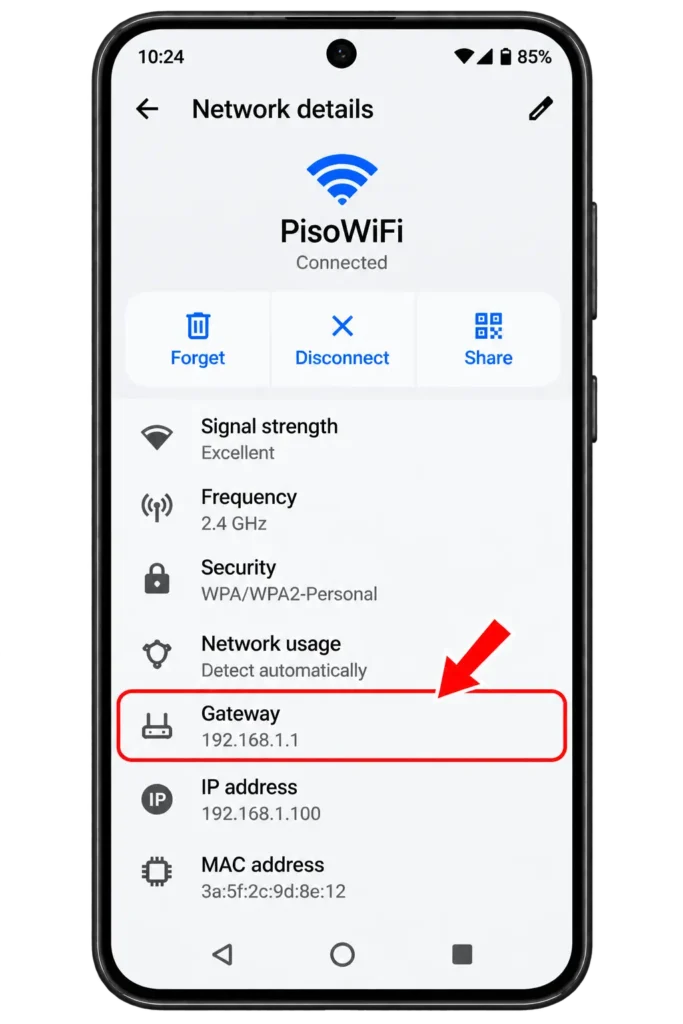
On Android:
- Go to Settings, then Wi-Fi
- Tap the name of the piso wifi network you are connected to (or tap the gear icon next to it)
- Look for a field labeled “Gateway”
- That number is your machine’s IP address — type it into your browser with http:// in front
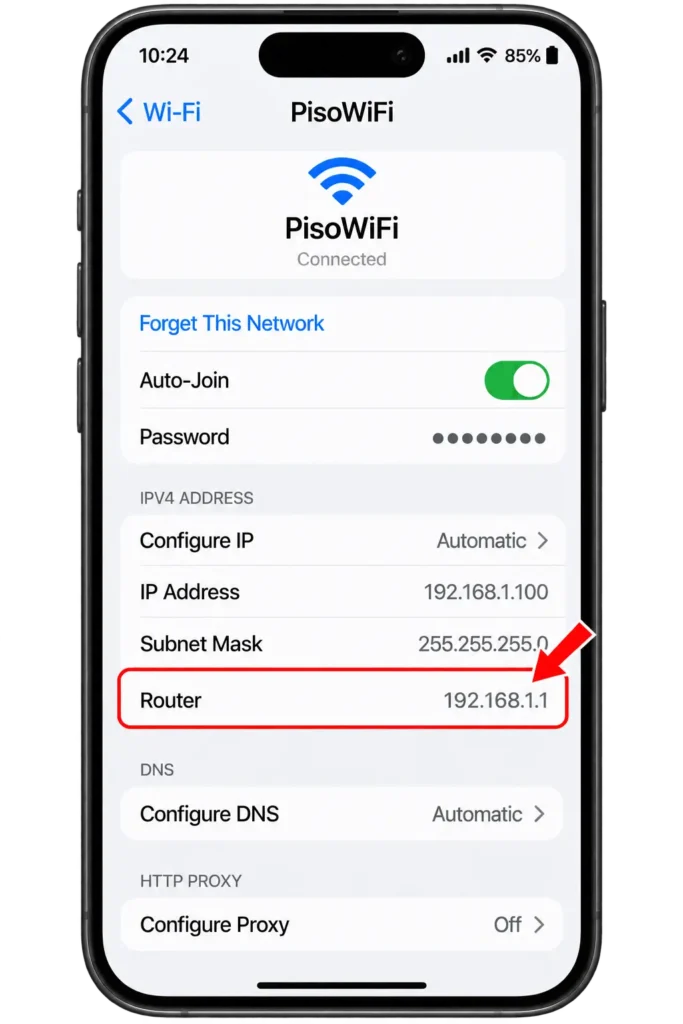
On iPhone:
- Go to Settings, then Wi-Fi
- Tap the (i) icon next to the piso wifi network name
- Look for a field labeled “Router”
- That number is your machine’s IP address
On Mac:
- Click the Apple menu, then go to System Settings (or System Preferences on older macOS)
- Click Wi-Fi, then click Details next to the piso wifi network name
- Click the TCP/IP tab
- Look for the field labeled “Router”
- That number is your machine’s IP address
On Windows:
- Press Windows + R, type cmd, and press Enter
- In the Command Prompt window, type ipconfig and press Enter
- Look for the section labeled “Wireless LAN adapter Wi-Fi”
- Find the line that says “Default Gateway”
- That number is your machine’s IP address
What Piso WiFi Pause Does NOT Do
Does Disconnecting From WiFi Pause Your Time?
It depends on the firmware. On most LPB-based machines, disconnecting from the WiFi network freezes the timer automatically.
On AdoPiSoft and most voucher-based systems, disconnecting does not stop the timer reliably. The machine may keep counting down while you are disconnected. The only guaranteed way to freeze your time is to tap the Pause button on the portal before you disconnect.
Does Closing the Browser Pause Your Time?
No. The timer runs on the machine, not in your browser. You can close Chrome, open other apps, or turn off your screen entirely and the session continues running. Closing the browser does not freeze the timer. Only the Pause button does that.
Can Pause Time Transfer to Another Device?
Not by default. Sessions are registered to the specific device that activated them, identified by the device’s MAC address. A different phone is a different device. The machine has no record of your session when you switch phones.
Some machines have a session transfer feature involving a PIN code, but the vendo owner must specifically enable this. Check the portal screen on the new device when you connect — if a “Transfer” or “Resume on this device” option appears, it means the owner has enabled the feature.
Why Can’t I Pause My 10.0.0.1 Piso WiFi?
Here are the most common reasons and what to do about each one.
- No Pause button on the portal. The vendo owner has not enabled it or turned it off on purpose. Either way, customers cannot do anything about it.
- Your session has already expired. No active session means no Pause button. Insert a new coin to start fresh.
- You hit the pause limit. On AdoPiSoft, time-based and data-based sessions allow 10 pauses by default. On LPB, the owner sets the limit manually. Once you reach it, the button disappears or stops responding.
- WiFi dropped and reconnected. Your phone may have been seen as a new device. Go to 10.0.0.1 and check if your session is still showing.
- Button tap not updating visually. Tap once, wait a few seconds, then refresh the page. If the timer is frozen, the pause worked. The display just lagged
- Pause button disappeared mid-session. Go to http://10.0.0.1 and check your timer. If it is still showing, the button should reappear. If the screen is back to the coin or voucher entry, your session expired while paused or the machine restarted and lost it.
If the portal at 10.0.0.1 will not open at all, that is a different problem, not a pause problem. For this read our full step by step fix list on our Piso WiFi login page.
Piso WiFi Pause Time After Restart or Power Loss
Session Disappeared After the Machine Rebooted
On LPB firmware: session data is stored only in RAM. When the machine restarts, all active and paused sessions are cleared. There is no automated way to recover them. If this happens to you as a customer, speak to the vendo owner. The owner can see previous session data in their logs and may choose to manually credit you, though this depends on the owner.
On AdoPiSoft v5 and newer: session data is written to the machine’s storage before and during the session. After a clean restart, AdoPiSoft can restore active and paused sessions automatically. Customers do not need to do anything. When the machine comes back online, reconnect to the network and go to 10.0.0.1. Your paused session should still be there.
What Happens During a Power Outage?
A sudden power cut is different from a clean restart. When power goes out without warning, the machine shuts down instantly without completing any write operations.
On LPB: sessions are always lost in a power outage. Credits cannot be recovered.
On AdoPiSoft: even with session recovery enabled, a sudden power loss can prevent the final write from completing. Recovery is more likely than on LPB, but not guaranteed. Operators in areas with frequent power interruptions should consider adding a small UPS (uninterruptible power supply) to their machine. A UPS gives the machine 5 to 10 minutes of power after a cut, enough time to complete any pending writes and shut down cleanly.
Can a Paused Session Expire After a Machine Reboot?
On LPB: yes. The session is gone entirely after a reboot, so there is nothing left to expire. From the machine’s perspective after restart, the session never existed.
On AdoPiSoft with session recovery: the paused session is restored with its original expiry clock continuing from the moment the machine comes back online. If the machine was down for 2 hours and the session expiry was set to 4 hours, the customer still has 2 hours of expiry window remaining after restart.
What If the Pause Button Disappears Mid-Session?
If your session is still active on the machine, the Piso WiFi portal should display your remaining time, and the Pause button should reappear.
If the portal shows the coin slot or voucher entry screen instead of your remaining time, one of two things happened: your session expired while you were paused (exceeded the expiry window), or the machine restarted and lost your session (on LPB).
10.0.0.1 Piso WiFi Voucher Codes, Time, and Payments
How Voucher-Based Sessions Work
Instead of dropping a coin into the slot, the customer types an alphanumeric code into the voucher field on the portal screen. The code was pre-generated by the machine owner and printed on a slip, card, or written on a small piece of paper. Tapping Submit on the portal activates the session.
Vouchers expire after a window set by the owner. A common setting is 7 days. If you buy a voucher and do not use it within 7 days, the code becomes invalid even if it was never used.
Can One Voucher Be Used on Multiple Devices?
No. One voucher activates one session on one device. After activation, the code cannot be entered on a second device. The session is tied to the MAC address of the first phone that used it.
How Much Time Does ₱1 Buy?
This varies by machine and location. There is no fixed national rate. Owners set their own pricing.
| Denomination | Typical Time (Urban) | Typical Time (Provincial or School Area) |
| ₱1 | 10 minutes | 15 to 20 minutes |
| ₱5 | 30 to 60 minutes | 60 to 90 minutes |
| ₱10 | 60 to 90 minutes | 90 to 120 minutes |
| ₱20 voucher | Varies | Varies |
Machines near public schools often offer more time per peso to attract student traffic. Machines in commercial areas or apartment lobbies may offer less. If you use the same machine regularly, ask the owner their rate schedule.
Can You Pause Voucher-Based Sessions?
Yes, if the owner has enabled pause time on their machine. The Pause button works exactly the same way whether the session was activated with a coin or a voucher. The method of payment does not affect how pause time functions.
Is Piso WiFi Safe?
Piso wifi is a public, unencrypted WiFi network. This means your traffic can be seen by others nearby. The DICT warns Filipinos never to open banking apps or digital wallets on public hotspots. Use Piso WiFi for browsing, schoolwork, and social media. Do your banking on mobile data.
Two more safety habits. First, confirm you joined the real network. Attackers can copy a network name to trick you. Second, turn off auto connect so your phone does not join unknown networks by itself.
10.0.0.1 Piso WiFi Pros and Cons
Piso wifi works well for casual, low-cost browsing but has real limitations worth knowing before you rely on it.
|
Pros |
Cons |
|---|---|
|
No monthly commitment. You pay only for the minutes you use. No contract, no subscription, no registration required. |
Shared bandwidth. All customers on the same machine share one connection. Speeds drop noticeably during peak hours near schools or markets. |
|
Available where fixed internet is not. Millions of Filipinos live in barangays where fiber from PLDT, Globe, or Converge is not installed. Piso wifi fills that gap. |
Session loss during power outages. On LPB machines (the majority), a power outage clears all active sessions. Credits are not automatically refunded. |
|
As low as ₱1 per session. For quick tasks like checking messages or looking something up, ₱1 is enough. |
Pause time is not always enabled. The owner must turn it on. Many machines still have it disabled. |
|
Pause time saves your credits. When enabled, you can freeze your session and not lose the time you paid for. |
Higher cost per hour than a monthly plan. At ₱1 for 10 minutes, one hour costs ₱6. A Globe or PLDT unlimited plan costs ₱1,299 to ₱2,499 per month, which is cheaper per hour for heavy users. |
|
No personal information needed. No account, no email, no personal data required to use the machine. |
Not suitable for sensitive transactions. The unencrypted network is not the right place for banking or personal data entry. |
Piso wifi is evolving quickly. Machines in 2026 increasingly support GCash and Maya cashless payments, Starlink as a rural backbone, and remote monitoring for multi-machine operators. The ₱1 coin-only setup is no longer the only option.
FAQs – Piso Wifi Pause Time
Conclusion
10.0.0.1 Piso wifi remains the most accessible internet option for millions of Filipinos who cannot get fiber or a postpaid plan in their area. Whether you are a customer trying to stretch a ₱1 session or a vendo owner configuring LPB or AdoPiSoft for the first time, pause time at 10.0.0.1 is the one feature that makes the difference between losing credits and keeping them.
About the Author
Written by Juan Carlos Dela Cruz, Network Technician & Active Vendo Operator (Philippines)
Juan Carlos Dela Cruz is a local network administrator and Piso WiFi vendo operator based in Cebu City, Philippines. With over 6 years of hands-on experience building, flashing, and maintaining coin-operated internet kiosks, he specializes in configuring LPB Piso WiFi, AdoPiSoft (v5+), JuanFi (MikroTik), and PisoFi firmware setups.
This guide is built from direct field testing on physical hardware rigs and addresses real-world captive portal behavior across multiple mobile operating systems—including iOS captive popups, Android IP assignments, and Samsung’s Secure Wi-Fi routing blocks.

How This Guide Was Tested:
- Tested Hardware: LPB Piso WiFi, AdoPiSoft v5.2, JuanFi (MikroTik hEX/hap series), Orange Pi / Raspberry Pi board setups.
- Tested Devices: Samsung Galaxy (One UI 6), iPhone (iOS 17/18), Xiaomi (MIUI/HyperOS), TECNO (HiOS), Windows 11.
- Verification Standard: Every gateway address (10.0.0.1, 10.10.0.1), pause duration rule, and vendor override step in this article was tested directly on live networks.
Have questions, found a portal error, or need help configuring your vendo panel? Reach out directly via email at [email protected]