
Piso WiFi Login – 10.0.0.1 Admin Login
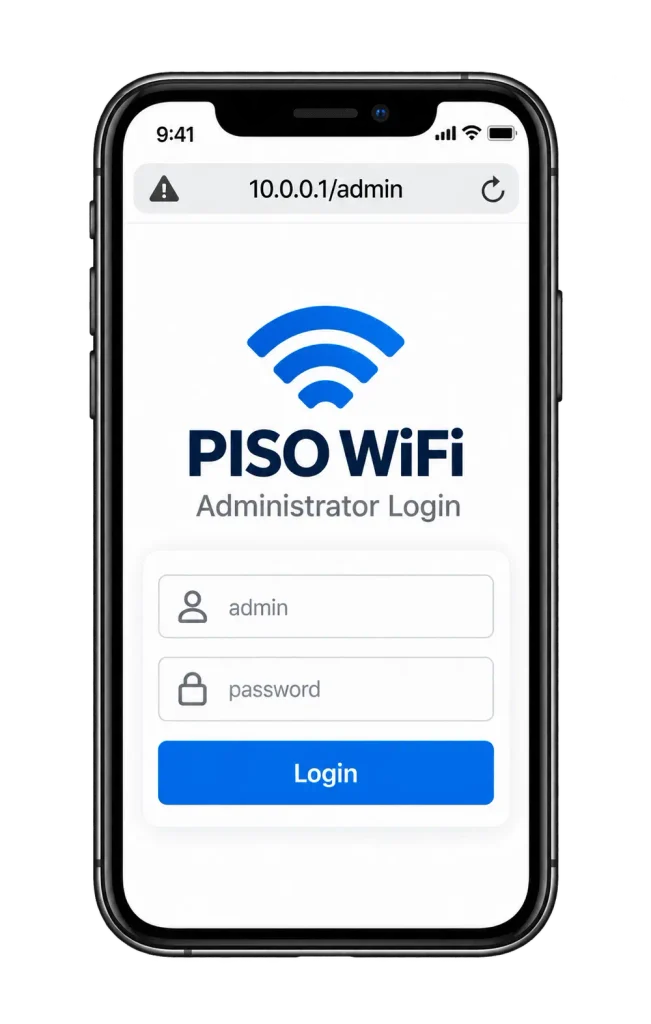
To log in to Piso WiFi, connect to the Piso WiFi network, turn off your mobile data, open your browser and type http://10.0.0.1 in the address bar. Insert a coin or enter a voucher code to start your session. Vendo owners log in at http://10.0.0.1/admin.
One important clarification before we start: as a customer, you do not need a username or password. When people search for “Piso WiFi login,” they simply mean opening the portal at 10.0.0.1. The machine recognizes your phone automatically. The only real login with credentials on a Piso WiFi machine is the owner’s admin panel at 10.0.0.1/admin, covered later in this guide.
How to Log In to the Piso WiFi Customer Portal
The customer portal is the page where you pay for time and manage your session. It lives at 10.0.0.1, which is a private IP address hosted by the machine itself.
- Connect your phone or laptop to the Piso WiFi network. Look for the network name on the machine, usually something like “PisoWiFi” or the store name.
- Turn off your mobile data completely. This is the step most people skip. When mobile data is on, your phone often routes browser traffic through it and the portal never loads.
- Open your browser and type 10.0.0.1 in the address bar at the top. The portal loads showing the coin slot screen or voucher entry field.
- Insert a coin into the machine, or type your voucher code and tap Submit. Your timer starts and internet access begins.
- Your remaining time shows on the portal screen. Keep the page open in a tab so you can pause later.
If the portal opened but you see a login form asking for a username and password, you probably typed 10.0.0.1/admin by mistake. Remove the /admin part and load 10.0.0.1 again. The admin login is only for the machine owner.
How to Pause and Resume Your Session After Piso wifi Login
If the owner enabled pause time, a Pause button appears on the portal below your timer.
Why Is the Pause Button Missing?
The owner has not enabled it. Pause time is off by default on every platform, and only the owner can turn it on from the admin panel. Nothing you do as a customer can make it appear.
For the complete pause time guide, including owner settings for pause limits and per payment mode toggles, see our Piso WiFi pause time guide.
Piso WiFi 10.0.0.1 Admin Login
This section is for vendo owners. The admin panel is where you set rates, generate vouchers, manage users, and enable pause time.
To log in, connect to the machine’s network, open your browser, go to http://10.0.0.1/admin, and enter your admin username and password.
Default Admin Username and Password by Platform
This is where you need to be careful, because sources disagree. Here are the defaults as reported for each platform. Check the sticker on your machine or ask your installer, because distributors sometimes change them.
| Platform | Reported default username | Reported default password |
| LPB | admin | 123456789 (some units use admin or 12345678) |
| AdoPiSoft | admin | admin (some installs use administrator / admin1234) |
| PisoFi | administrator | admin12345 |
| WiFi5-Soft | admin | wifi5soft |
| JuanFi | admin | admin |
| 1Click | admin | check your installer |
Note: If you have not changed your default login since setup, do it now. Default credentials are publicly known and leave your admin panel open to anyone on your network. On LPB, go to Settings, then Admin Account. On AdoPiSoft, go to Configuration, then Admin Settings. Use a password that is at least 10 characters.
What Is Inside the Dashboard?
Typical sections include portal settings, WiFi rates and timer configuration, voucher generation, connected users with bandwidth usage, pause time controls, and sales reports. On LPB you will also see device info like software version and license status.
Forgot Your Admin Password? How to Reset It
There is no “forgot password” link on these panels. The recovery method is a factory reset of the machine, which wipes all settings including rates and vouchers, so back up your configuration first if you can still get in. After reset, log in with the default credentials for your platform and set a new password immediately.
10.0.0.1 Not Working? Troubleshooting Checklist
Go through these in order before assuming the machine is broken.
10.0.0.1 Is Not Opening
- Connected to the right network? Check the WiFi icon. You must be on the Piso WiFi network, not mobile data or another WiFi.
- Mobile data off: Turn it off completely. If it stays on, your phone loads through your SIM and skips the portal.
- Address bar, not Google: Type 10.0.0.1 into Google address bar not the search bar.
- http, not https: Type http://10.0.0.1. The portal has no security certificate, so https shows an error.
- Samsung Secure WiFi: On a Samsung phone, this is the most likely cause. Settings, Connections, Wi-Fi, tap the gear next to the network, turn Secure Wi-Fi OFF.
- Try 10.10.0.1: Some machines use this address instead.
- Try another browser: If Chrome fails, try Samsung Internet, Firefox, or the phone’s default browser.
- Incognito window: Open a private window and try 10.0.0.1 there. This rules out a cached bad page.
- Private DNS off: On Android, open Settings, search “Private DNS”, and set it to Off. It can stop the portal page from opening.
The Login Page Is Not Showing
The page loads, but shows a blank white screen or an error instead of the portal.
- The portal service is still starting after a restart. Wait 15 to 20 seconds and refresh.
- You added /admin to the address. Remove it. Customers use 10.0.0.1 login only.
- The machine has an ISP problem and is serving an error page. Only the owner can fix this.
Piso WiFi Has No Internet Connection
Your session is active but websites do not load. The machine’s internet provider (Globe, PLDT, Smart, Converge) is likely down. Nothing on your phone fixes this. If every customer at the machine has the same problem, it is the provider. Wait and retry.
Browser Keeps Redirecting to the Portal
Open 10.0.0.1 and check your timer. If the screen shows coin or voucher entry instead, your session expired. Insert a coin or enter a voucher code to start a new session.
VPN Is Blocking the Local Portal
Turn the VPN off before opening the portal. You can turn it back on once your session is active and you are browsing.
Android Shows “Obtaining IP Address”
Your phone is waiting for the machine to give it an IP address. It usually clears in a few seconds. If it stays stuck:
- Move closer to the machine. Wait 20 to 30 seconds.
- Forget the network in WiFi settings, then reconnect.
- If others connect fine, the machine may be at its device limit. Wait for someone to disconnect.
Piso WiFi Login Security Tips
Anyone can join a Piso WiFi network. That is why you need to be careful. Here are simple safety tips for customers and owners.
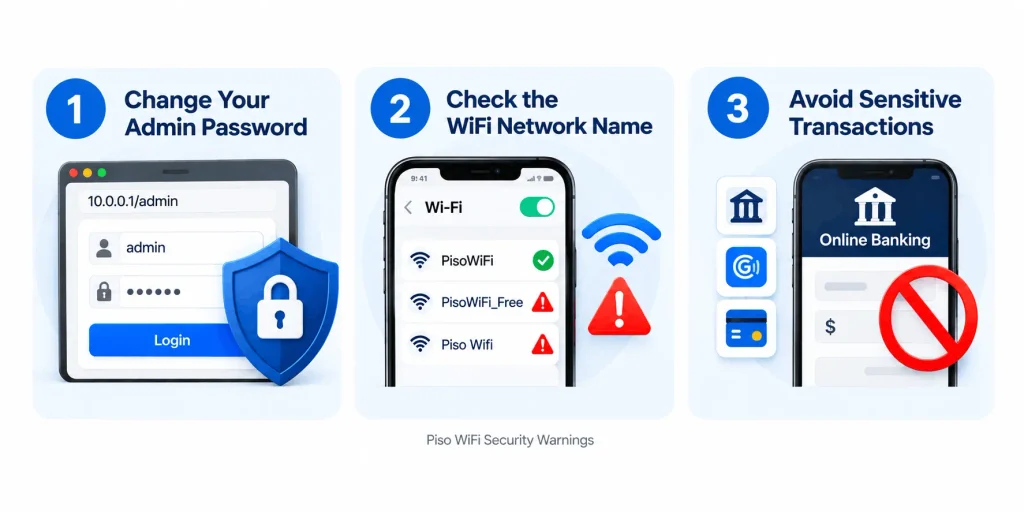
Change Your Default Admin Credentials
This is the single most important thing in this guide. Every default password listed above is public knowledge. If you run a machine with admin/admin still set, anyone sitting near it can open your panel, change your rates, or lock you out.
Verify the Piso WiFi Network Name
A scammer can set up a hotspot with a name similar to a real Piso WiFi network to capture traffic. If a network name looks slightly off, do not connect.
Avoid Banking and Sensitive Transactions on Public WiFi
It is an open, unencrypted network. Social media and video sites use their own encryption and are fine for casual use, but keep banking, GCash transfers, and password entry to your own mobile data.